
Warehouses & Stock Movements
What it is for
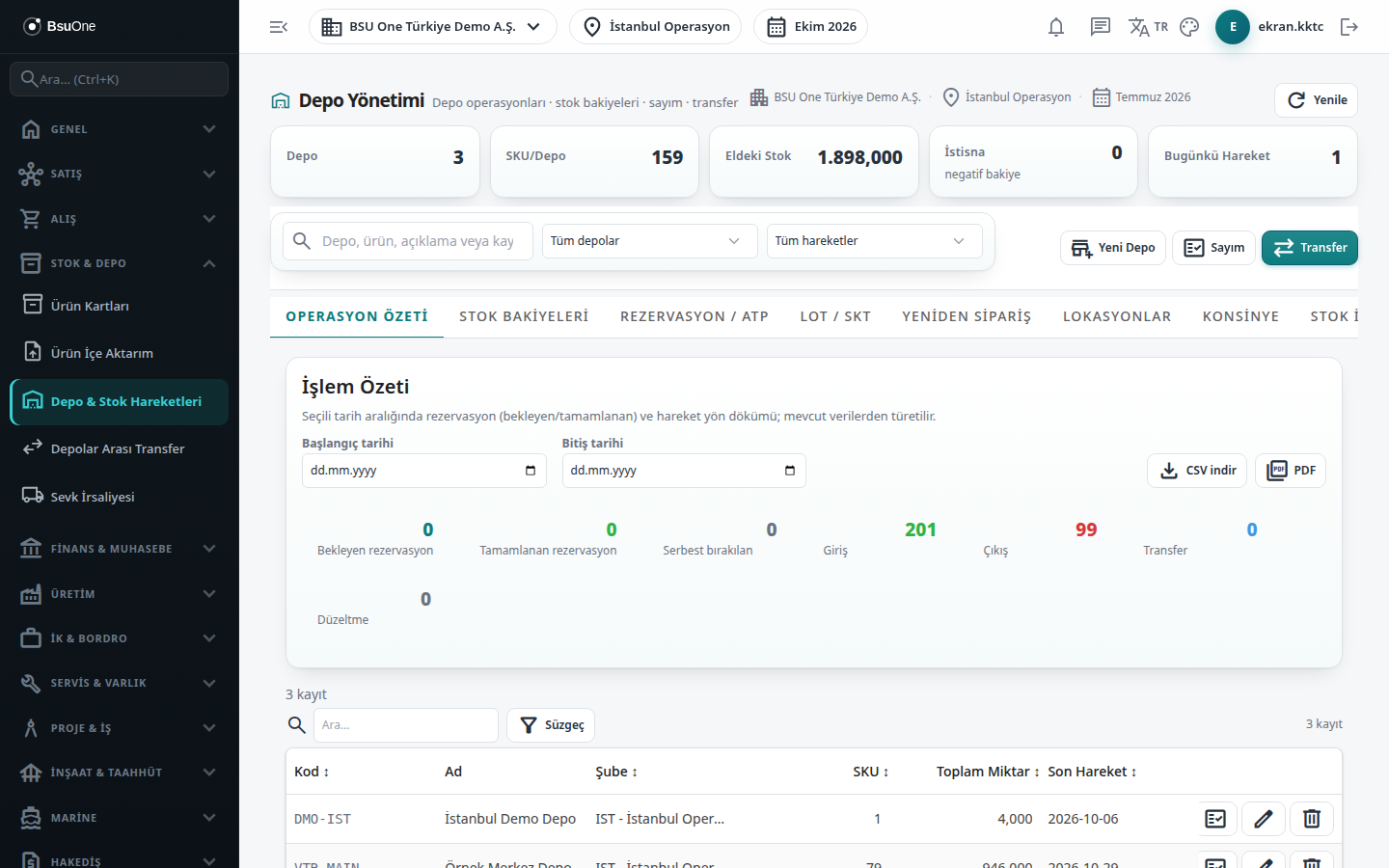
Section titled “What it is for”Warehouse Management gathers in one place the definition of warehouses, stock balances in the warehouses, reservations, lots and expiry dates, shelf locations, consignment stock, stock exceptions and all stock movements. Physical counting and instant transfer between warehouses are also done on this screen. Stock records are never deleted; every change is added as a new movement.
The summary boxes at the top are Warehouse, SKU/Warehouse, On Hand, Exception (negative balance) and Today’s Movements. The search box and the warehouse / movement direction filters filter the lists in the tabs. The command strip holds New Warehouse, Count and Transfer.
Who uses it
Section titled “Who uses it”Warehouse officers, purchasing and accounting staff. On the Stock / Inventory page of the role screen: View to see; Add for warehouse, count, transfer, consignment, reservation and location work; Delete to delete a warehouse or location; Approve for the permission to move reserved stock.
Screens
Section titled “Screens”- Operations Overview (Operasyon Özeti): warehouse list, date-range operation summary, adding / editing warehouses, counts.
- Stock Balances (Stok Bakiyeleri): product by warehouse balance, average cost, value.
- Reservation / ATP: on hand, reserved and available quantity; manual reservation.
- Lot / Expiry (Lot / SKT): lot balances and approaching expiry.
- Reorder (Yeniden Sipariş): products below the reorder point, purchase request.
- Locations (Lokasyonlar): shelf / bin definition inside a warehouse and location balance.
- Consignment (Konsinye): supplier goods and goods held at the customer.
- Stock Exceptions (Stok İstisnaları): negative, over-reserved, expired and dead stock.
- Movements (Hareketler): all stock movements, correction entry.
- Lot Trace (Lot İzleme): the whole journey of a lot.
- Count History (Sayım Geçmişi): past counts and corrections.
Typical workflow
Section titled “Typical workflow”- At first setup open the warehouse with New Warehouse.
- Enter stock through documents (purchase delivery note / invoice) or a count, and follow balances on the Stock Balances tab.
- Pick the tab you need from the list above.
Related modules
Section titled “Related modules”Step-by-step screen guides are currently available in Turkish; the links above open them.