
Restaurant / POS
What it is for
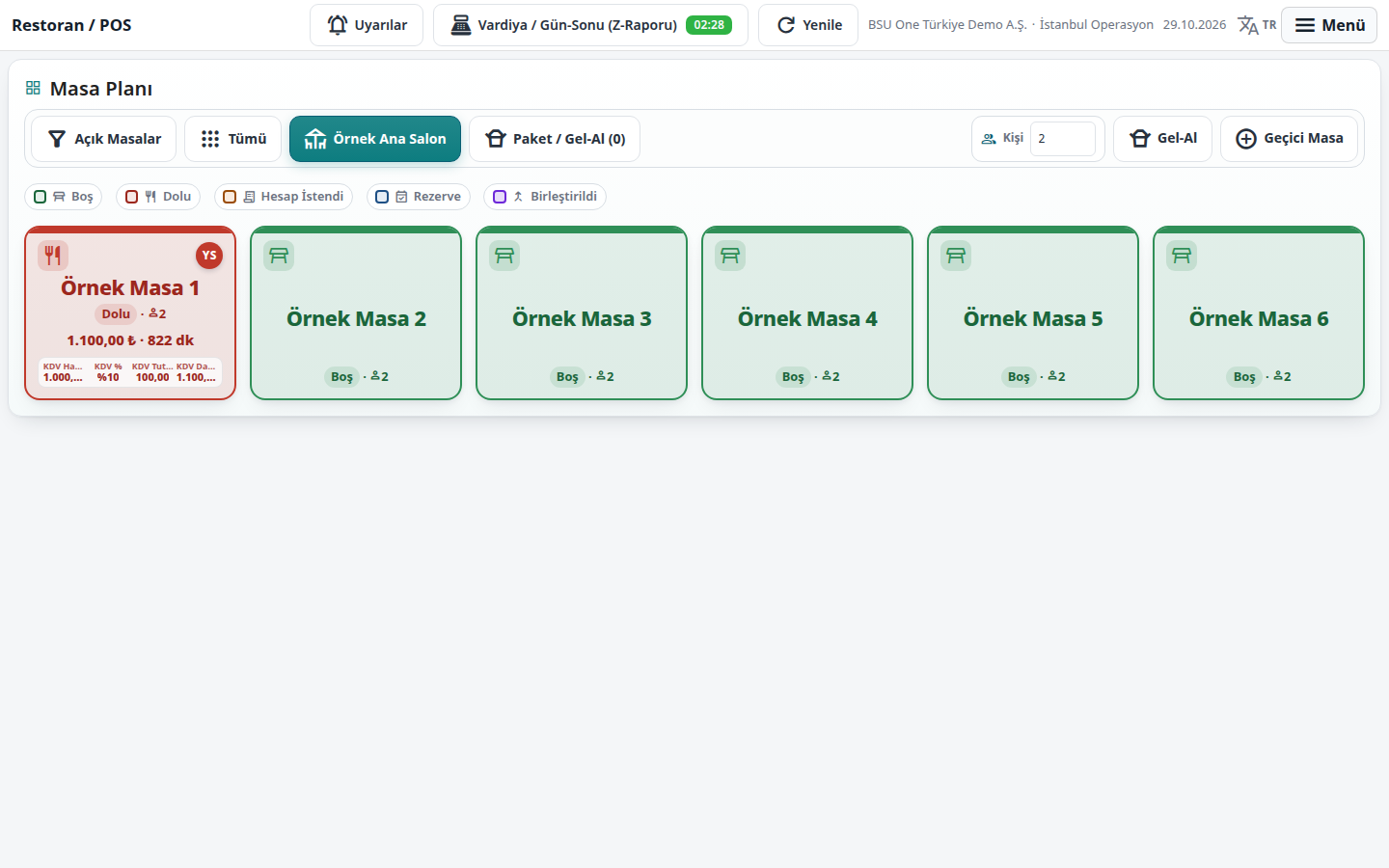
Section titled “What it is for”Restaurant / POS is the full-screen operator screen where waiters and cashiers work every day. It opens on the table plan: hall tabs, table boxes, occupied tables and takeaway orders. Touching a table opens the order screen; you add products to the basket, send them to the kitchen, print the check, take payment and close it. From the same screen you open and close the shift, take money out of the register, and run refunds and reopening. The screen updates live; table status and alerts refresh with changes made in the kitchen and on other devices.
Who uses it
Section titled “Who uses it”Waiters, cashiers and the restaurant manager. View on the Restaurant / Order page of the role screen is needed to open the screen. Edit is needed to take orders and send them to the kitchen (Add allows opening tables / takeaway); other actions are controlled by separate permissions on the role screen:
- Cancelling a line or table (Check Cancel (Void)), discounts and coupons (Apply Discount), complimentary items (Comp), refunds (Refund).
- Taking payment and closing a check (POS collection), changing a line price (POS line price change), taking over a check from another device (Check takeover), reopening a closed check (Reopen check).
- Opening / closing a shift and the Z report (Shift / End of Day (Z)), cash withdrawal (POS cash withdrawal) and kitchen ticket reprint (Kitchen ticket reprint).
A waiter’s collection permission may be off by default; buttons without permission appear faded. A staff member can do an action under their own identity with Switch with PIN; the PIN changes only who performs the action, not the branch scope.
Screens
Section titled “Screens”- Top bar: Alerts (waiter calls and the QR approval queue), the shift button and Refresh. If the branch setting requires an open shift for collection and there is none, a warning and an open-shift button appear.
- Table plan: hall tabs (Open Tables, All, hall names, Takeaway / Pickup); a table box shows its status (Empty, Occupied, Bill Requested, Reserved).
- Order screen: category cards, Search product or barcode field; SEND ORDER sends unsent lines to the kitchen (they become Sent); PRINT CHECK prints the check; PAYMENT (or one-touch CASH / CARD) opens the payment panel, where you choose the collection currency and Amount Received.
- Recent Transactions: reopen a closed check (invoice, stock, cash and accounting records are reversed with reversing entries and a new check is opened with the same lines).
- Alerts: Waiter, Bill, Water, Order Ready and Other calls from the table QR, managed with Take and Close.
Related modules
Section titled “Related modules”Step-by-step screen guides are currently available in Turkish; the links above open them.