
Quick Sale / Market
What it is for
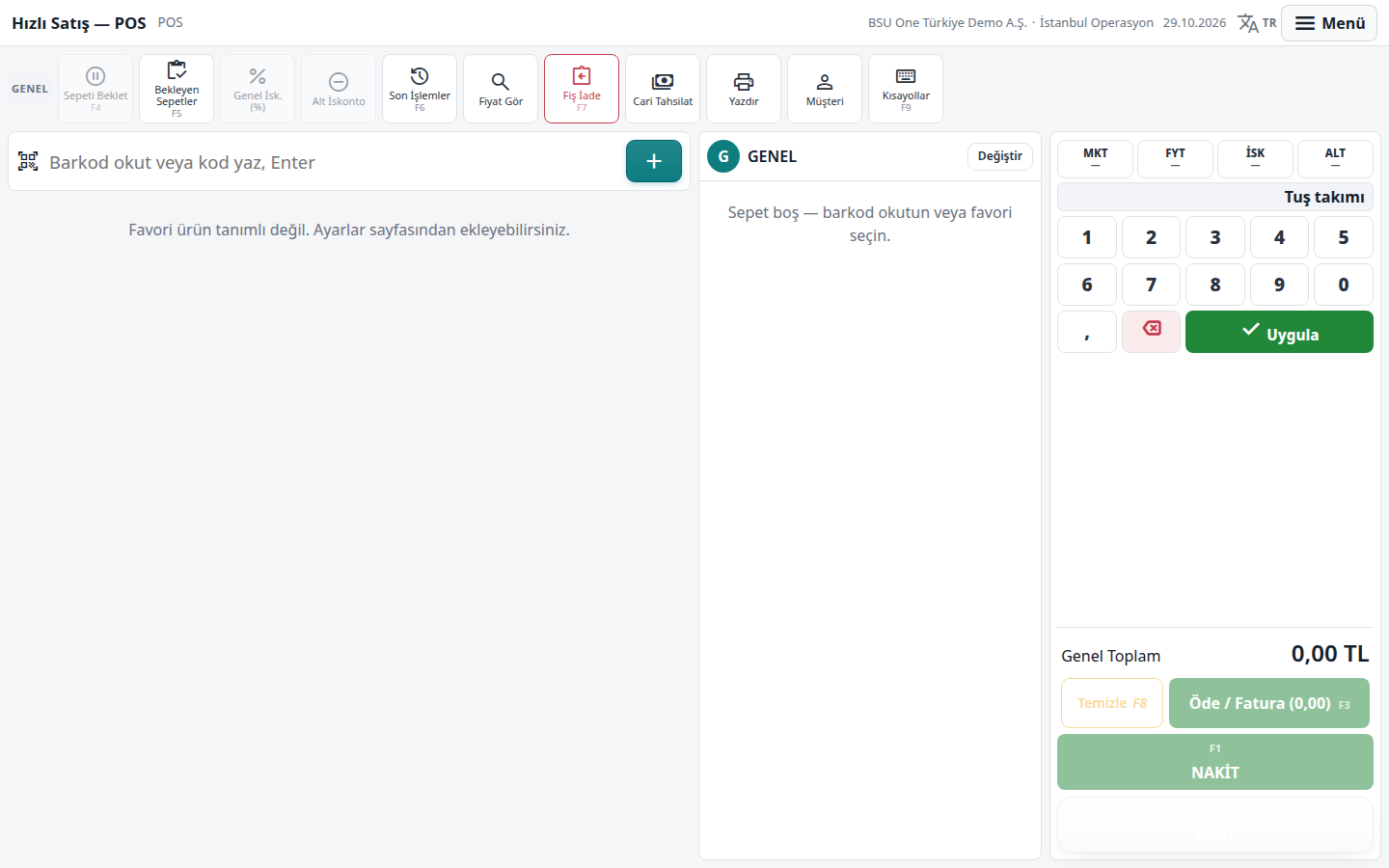
Section titled “What it is for”Quick Sale (Hızlı Satış) is the full-screen register screen for markets and similar retail sales. You add products to the basket by scanning a barcode or with favorite keys; you take cash, card, credit (on account), meal card and foreign currency in mixed payment; when the sale closes a receipt (invoice document) is created and stock is deducted from the warehouse. Returns with and without a receipt, holding a basket, recent transactions, collection from an account and opening / closing the register (X and Z reports) are on the same screen.
The screen resolves the price in a single calculation from the product card, the price list, the account-specific price and valid campaigns. A “VAT incl.” tag on a line shows that the price was entered including VAT.
Who uses it
Section titled “Who uses it”The cashier and the market manager. The Quick Sale page permissions on the role screen work like this:
- View: opens the screen.
- Add: making sales, holding a basket, collection from an account and opening the register.
- Edit: changing a price on a line, giving a discount (for rates above the cashier discount threshold), correcting the payment type, withdrawing cash and writing an expense.
- Delete: making returns.
Buttons without permission are not hidden but shown faded.
Screens
Section titled “Screens”- Open Register (Kasayı Açın): choose the register and enter the opening float, then Open Register.
- Basket: scan the barcode or type a product name / code and press Enter; an age-restricted product opens an age check window. The keypad modes are MKT (quantity), FYT (price), İSK (percentage discount) and ALT (amount discount).
- Left rail: general and sub-total discount, Customer selection, Hold Basket (F4) and Held Baskets (F5), Price Lookup, and Receipt Return (F7).
- Payment: CASH (F1) or CARD (F2) closes in one move, or Pay / Invoice (F3) opens the payment window showing the base (excl. VAT), the VAT inside and the total; COMPLETE SALE finishes it, and Write to Account puts it on the selected account.
- Receipt Return (F7): find the receipt by document number, pick it, remove what will not be returned, and choose the return reason in the payment window.
- Recent Transactions (F6): see a past receipt or correct its payment type with a reversing entry.
- Register Operations (Kasa İşlemleri): X Report (open shift summary without closing), Cash Withdrawal, Expense, Open Drawer, Shift Handover and the counted Z Report (Confirm Count and Close Register), which records expected, counted and difference.
Related modules
Section titled “Related modules”Step-by-step screen guides are currently available in Turkish; the links above open them.